DevOps Project of Nodejs-Demo-App

Tools & Technology Used:
Git
GitHub
Docker
Jenkins
For Creating similar Architecture follow the below steps
Below are the article/document Links to install the required tools
Git
Version Control: Tracks changes in your code.
Branches: Work on different features separately.
Merging: Combine different branches of code.
Distributed: Everyone has a full copy of the project history.
Staging Area: Preview changes before saving them.
Commit: Save a snapshot of your code.
Repository: The project folder with all its history.
Remote Repositories: Store code on servers for collaboration.
Common Commands:
git init: Start a new project.git clone: Copy a project.git add: Prepare changes for saving.git commit: Save changes with a message.git push: Send changes to a server.git pull: Get changes from a server.git status: Check the status of changes.git branch: Manage different versions of your project.git merge: Combine changes from different branches.
Git-Hub
Hosting: Stores Git repositories online.
Collaboration: Allows multiple people to work on projects.
Remote Access: Manage and share code from anywhere.
Pull Requests: Propose changes and review them.
Issue Tracking: Manage tasks, bugs, and feature requests.
Wikis and Pages: Create documentation and websites.
Integration: Connects with other tools and services.
Social Features: Follow projects, developers, and communities.
Docker
Docker is a tool that makes it easier to create, deploy, and run applications by using containers. Containers are lightweight and portable, allowing developers to package an application with all its dependencies and run it consistently across different environments.
Docker Engine: Core part that creates and runs containers
Docker Images: Templates used to create containers.
Docker Containers: Instances of images that run applications.
Dockerfile: Text file with instructions to build a Docker image.
Docker Hub: Online repository to store and share Docker images.
Docker Compose: Tool to define and run multi-container applications using a YAML file.
Here are the benefits of Docker in simple points
Portability: Run applications consistently across different environments.
Efficiency: Uses fewer resources than virtual machines.
Scalability: Easily scale applications up or down.
Speed: Faster startup times compared to virtual machines.
Version Control: Easily track and manage different versions of your application.
Jenkins
Automation: Jenkins automates software development tasks like building, testing, and deployment.
Integration: It integrates code changes from multiple developers into a shared repository.
Deployment: Helps in automating the delivery and deployment of applications.
Extensibility: Jenkins can be extended with plugins for various tools and technologies.
User Interface: Provides a user-friendly web interface for managing and monitoring automation tasks.
Open Source: Free to use and supported by a large community of developers.
Scalability: Can distribute work across multiple machines for efficient processing.
Industry Standard: Widely used in software development for continuous integration and delivery.
Steps and Setup the project
- Clone the repo
git clone https://github.com/AdityaThorat679/nodejs-demo-app.git
Here, we are cloning our repo into our local system to check if the code is running and to add the Dockerfile to it.
- Check Code is running or not
npm install
npm start
npm install: This command is used to install all dependencies listed in a project's
npm start: This command is typically used to start a project.
- Dockerfile creation
FROM node:22.3.0
WORKDIR /usr/src/app
COPY package*.json ./
RUN npm install
COPY . .
EXPOSE 5000:5000
CMD ["npm", "start"]
FROM node:22.3.0: Uses Node.js version 22.3.0 as the base image.
WORKDIR /usr/src/app: Sets the working directory inside the container to
/usr/src/app.COPY package.json ./*: Copies
package.jsonandpackage-lock.json(if present) from the host to the container.RUN npm install: Installs Node.js dependencies specified in
package.json.COPY . ./: Copies all files from the host to the container.
EXPOSE 5000:5000: Exposes port 5000 on the container to allow connections.
CMD ["npm", "start"]: Specifies the command to start the Node.js application when the container starts.
- Build Image
docker build -t nodejs-app:leatest .
This command builds a Docker image named nodejs-app with the tag latest using the Dockerfile found in the current directory.
- Run Image / Run Container
docker run -p 5000:5000 nodejs-app:leatest
docker run: Starts a new Docker container.
-p 5000:5000: Maps port 5000 on the host to port 5000 on the container, allowing access to the application running inside the container.
nodejs-app: Specifies the Docker image (nodejs-app with tag latest) to use for creating the container.
- Docker Compose File
version: '3'
services:
 web:
   build: .
   ports:
     - "5000:5000"
version: '3': Specifies the version of Docker Compose file format being used (version 3 in this case).
services: Defines the services that make up your application.
web: Defines a service named
web.build: .: Specifies that the service should be built using the Dockerfile (
Dockerfile) located in the current directory (.).ports: Specifies port mappings between the Docker container and the host machine.
"5000:5000": Maps port 5000 on the host to port 5000 on the container. This allows you to access the application running inside the container via port 5000 on your host machine.
Check Docker Compose File is Working Or Not
docker compose up
docker compose down
docker compose up: Starts the application defined in the docker-compose.yml file. docker compose down: Stops and removes the containers defined in the docker-compose.yml file.
- To Commit the changes
git add .
Add all file in staged form
git commit -m "Commit with Dockerfile and Docker-Compose.yml file"
Commit all changes
- Push Code in your GitHub Repo
git push
GitHub Repo get update
Jenkins pipeline
Setup the pipeline
Open Jenkins : Go to your browser and search for
localhost:8080. This is the default port to open Jenkins.Crate New Pipeline : Click on New item -> Enter the item name -> select the Pipeline
Set Up Pipeline
Step 1: Click on "GitHub Project" and add your project (repo) URL.
Step 2: In "Build Triggers" click on "GitHub hook trigger for GITScm polling."
Step 3: In "Pipeline" Definition is "Pipeline Script"
Step 4: Write the Script
pipeline{
    agent any

    stages{
        stage("Clone"){
            steps{
                echo "Clone the code from github"
                git url:"https://github.com/AdityaThorat679/nodejs-demo-app.git", branch:"main"
            }
        }
        stage("Build"){
            steps{
                echo "Build the images"
                sh "docker build -t nodejs-demo-app ."
            }
        }
        stage("Run"){
            steps{
                echo "Deploy the container"
                sh "docker compose down && docker compose up"
            }
        }
    }
}
Step 5: Click on Save and Click on Build Now
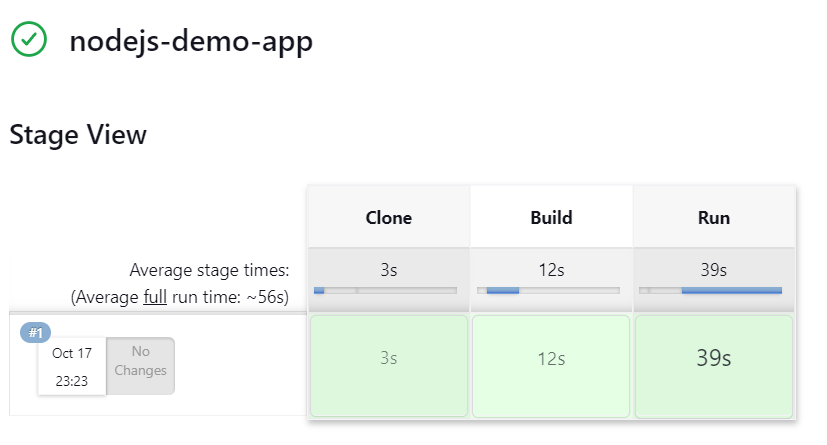
Step 6: Go to the chrome and open your web
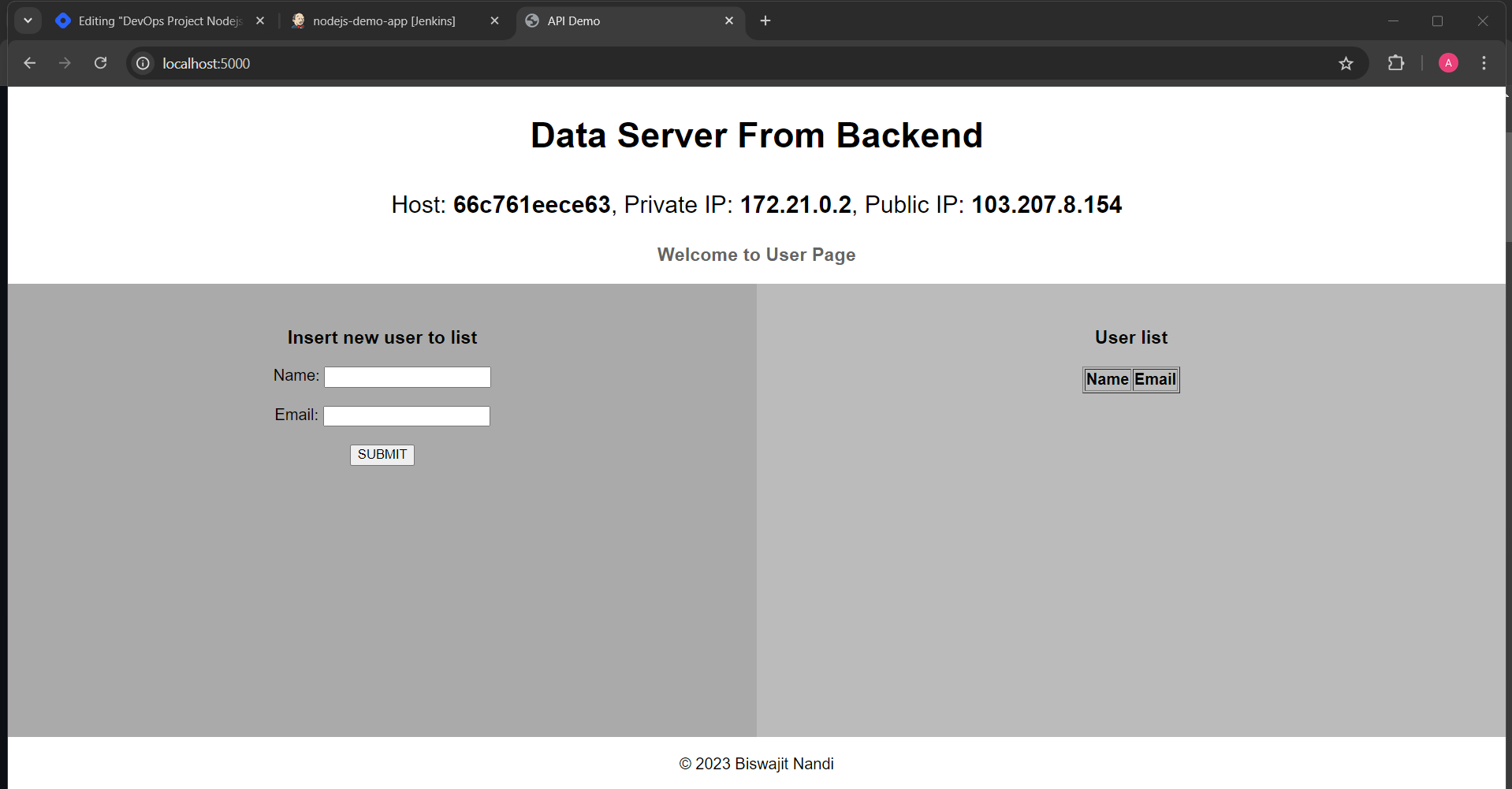
Your application is running on port 5000
GitHub Repository